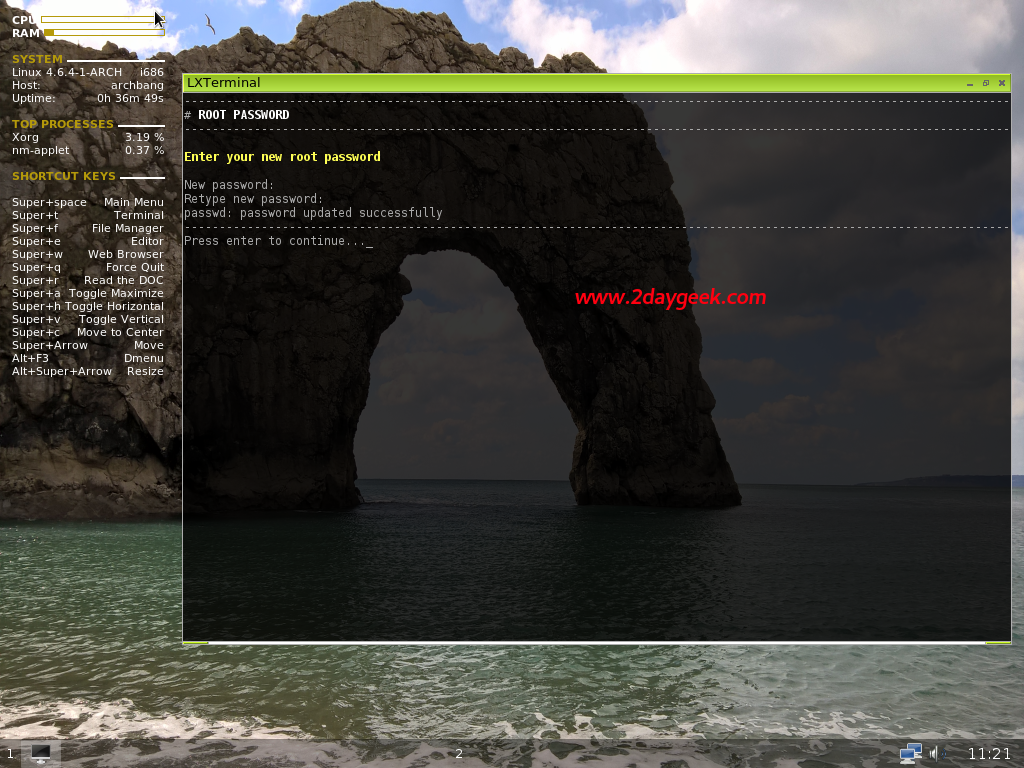
In step five, you need to set the system root password by entering number 5. Make sure you should set hard and guess password for security reason.
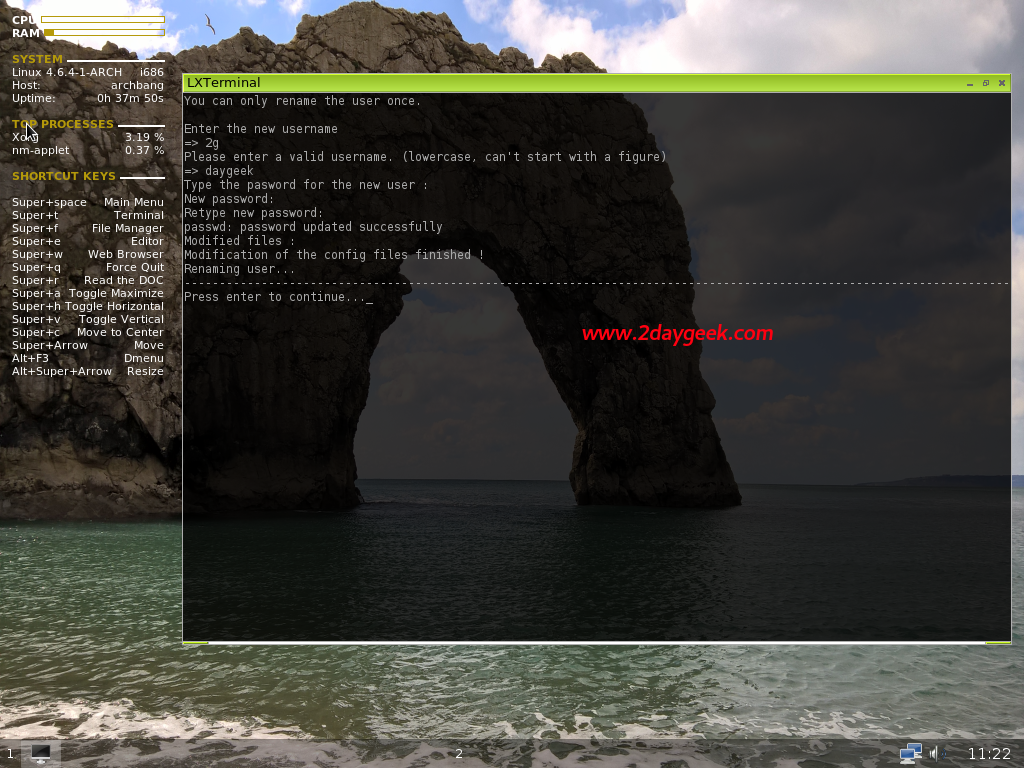
Next go to the 6th step by entering number 6, Its time to create new user account and password on your system.
- Username
- Choose a password
- Confirm your password
Last but not least, now you are in final step. Just enter number 7 on prompt to install bootloader. Choose Grub2 is preferred.
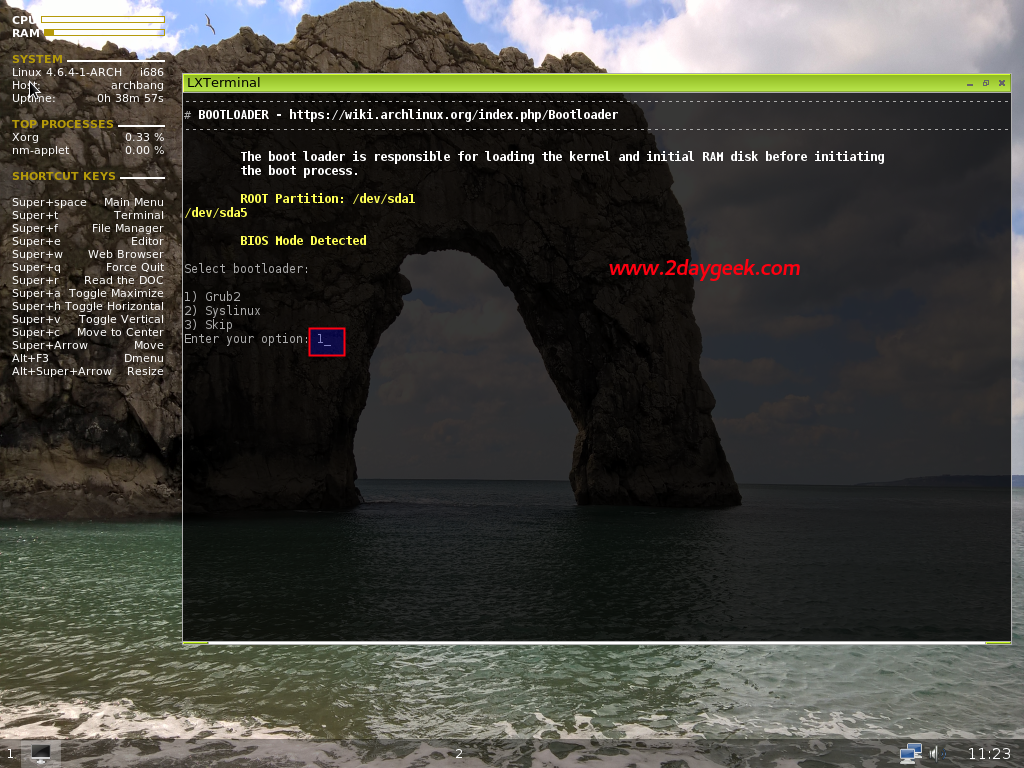
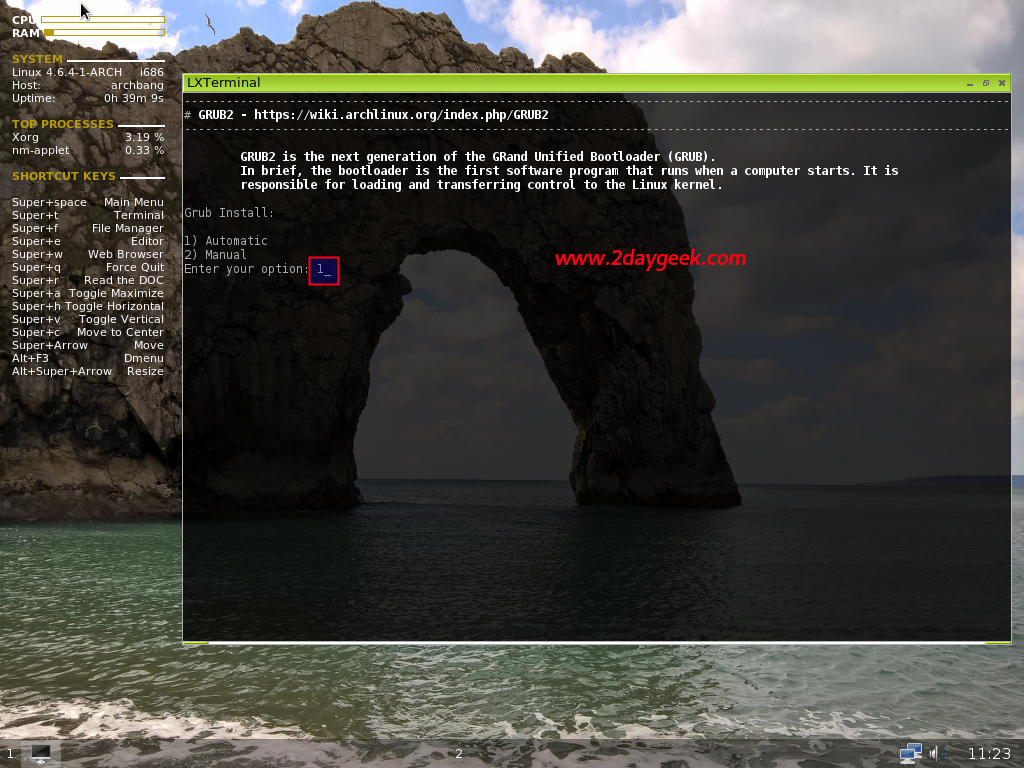
Next Choose Automatic.
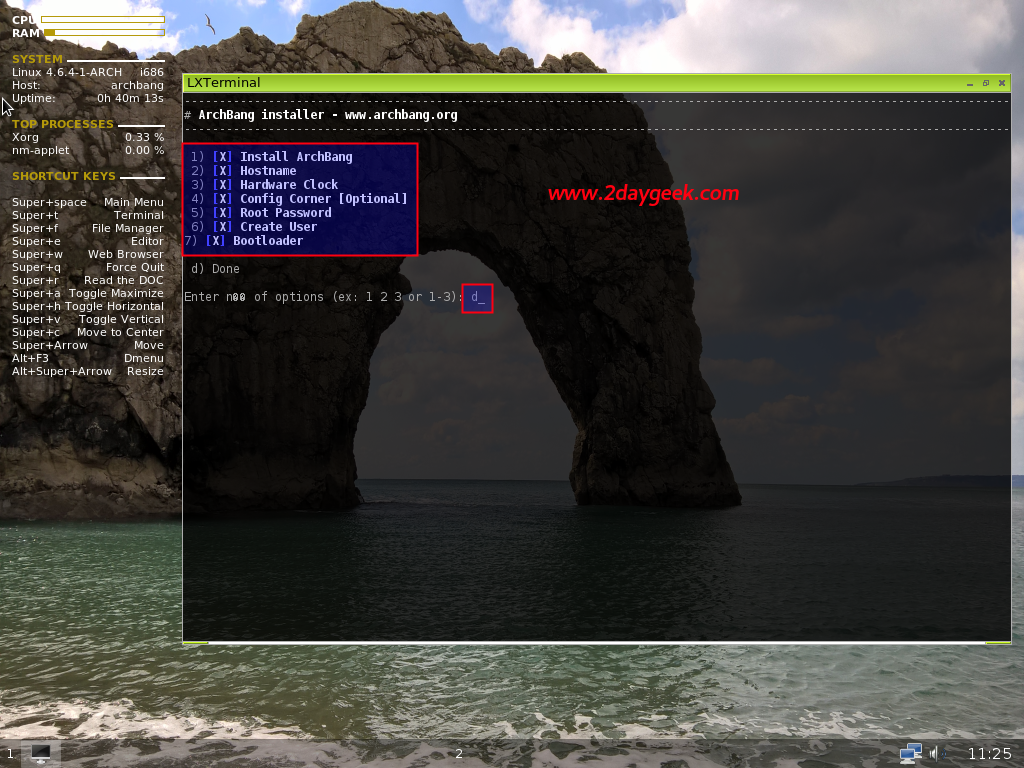
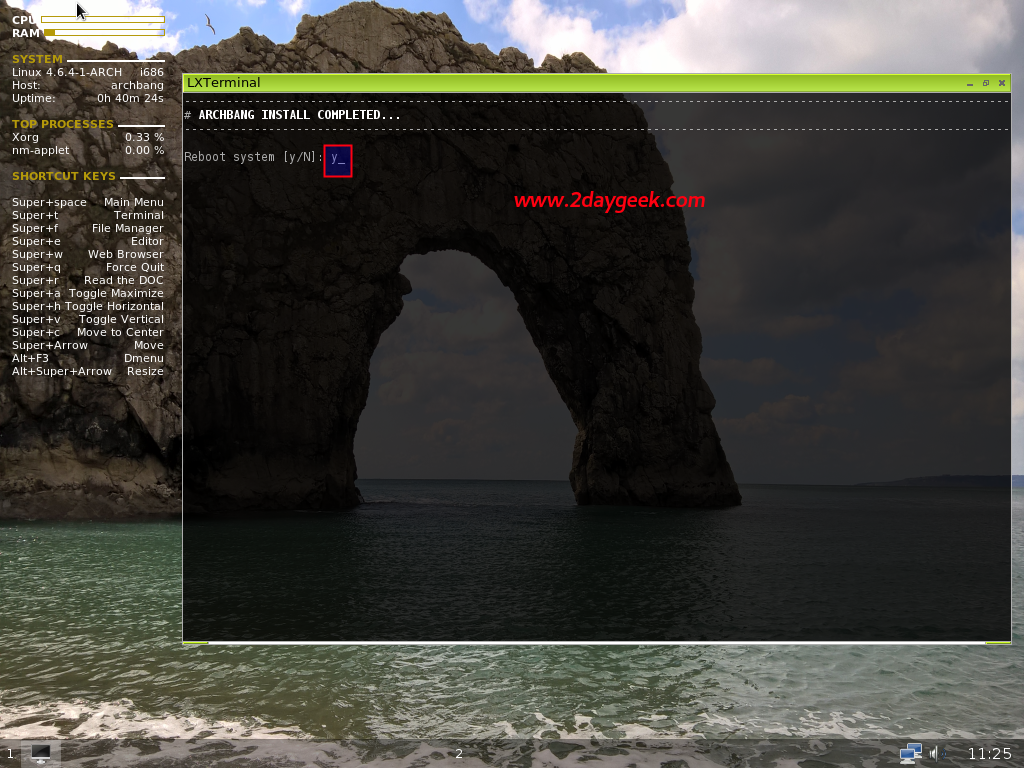
After successful bootloader installation. Press d, then press y reboot your system.
Pacman Package signing
After successfully login to fresh ArchBang OS. Run the below three commands to Initialize the pacman keyring, Verifye the five master keys & update the keys to determine if packages are authentic by GnuPG keys.
$ sudo pacman-key --init
$ sudo pacman-key --populate archlinux
$ sudo pacman-key --refresh-keys
Finally make the system upto date by firing the below command.
$ sudo pacman -Syu
If you interested, you can also read about Antergos & ArchLinux installation.
[ac-button size=”large” color=”orange” style=”flat” icon=”fa-link” url=”https://www.2daygeek.com/how-to-install-antergos-linux-one-of-best-arch-based-distro-for-beginners/” target=”_blank”]How to install Antergos[/ac-button]
[ac-button size=”large” color=”green” style=”flat” icon=”fa-link” url=”https://www.2daygeek.com/arch-linux-installation-guide/” target=”_blank”]How to install ArchLinux[/ac-button]
Enjoy…)